Autopsy
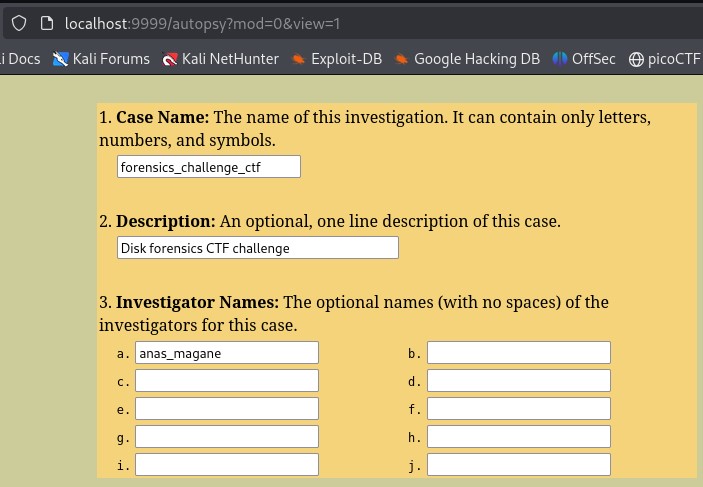
type sudo autopsy in the terminal Open http://localhost:9999/autopsy in Firefox Select New case Case Name: The name of this investigation == اسم التحقيق/ القضية it is like the…
type sudo autopsy in the terminal
Open http://localhost:9999/autopsy (opens in a new tab) in Firefox
Select New case
Case Name: The name of this investigation == اسم التحقيق/ القضية
it is like the name of the project
N.B : It can contain only letters, numbers, and symbols
if the investigation Hacking / Intrusion Case or Data Theft Case or CTF Challenge !!
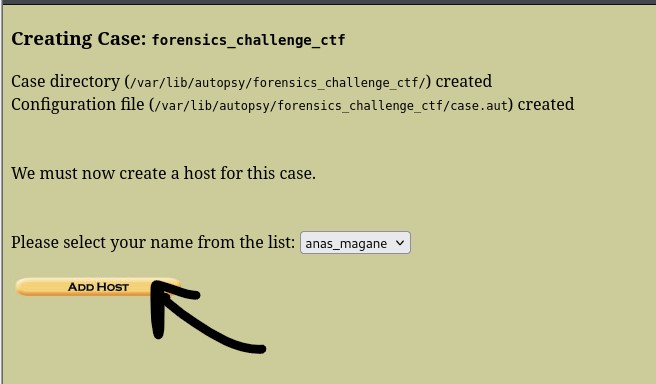
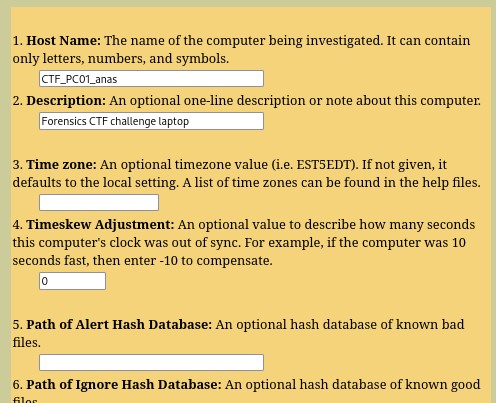
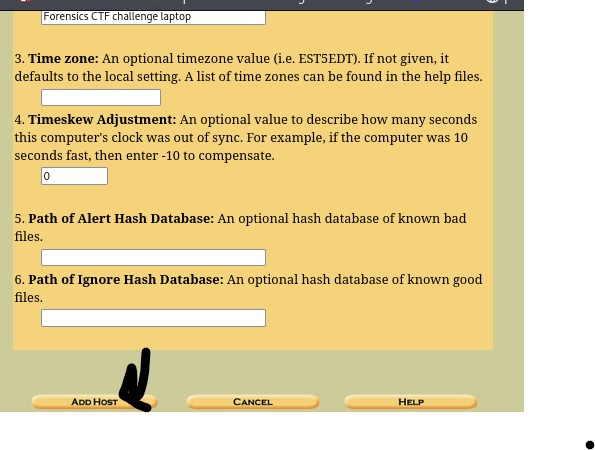
now the host is the investigated computer.
the Name of === Victim_PC1
description === Main victim laptop - CTF challenge PC
Time Zone === Computer time zone.
Timeskew Adjustment === Clock correction in seconds.
Alert Hash Database === Path to known bad file hashes - Used to detect malware.
Ignore Hash Database === Path to known good file hashes - Used to ignore normal system files.
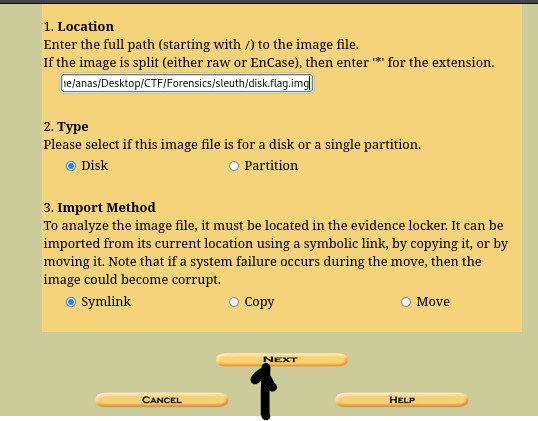
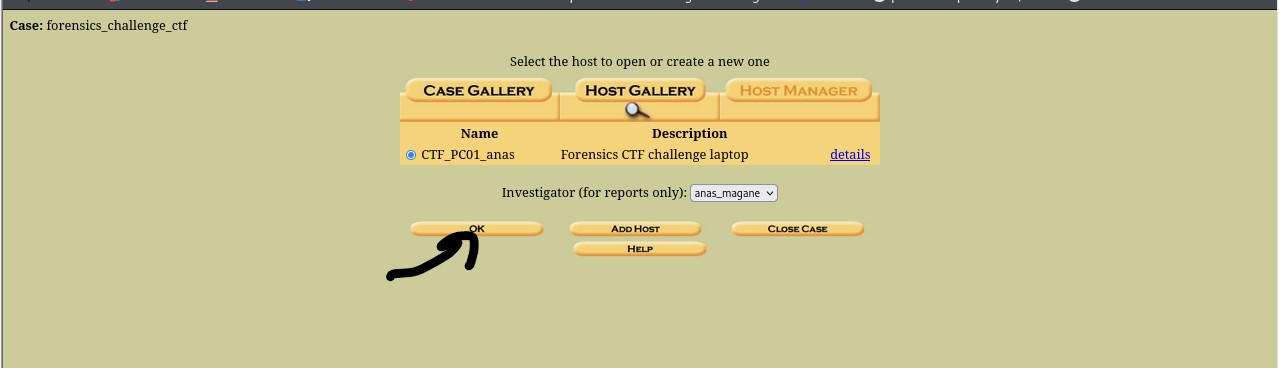 click in Add Image File and select the disk --- exemples disk.img , disk.dd , disk.E01 ,disk.ad1
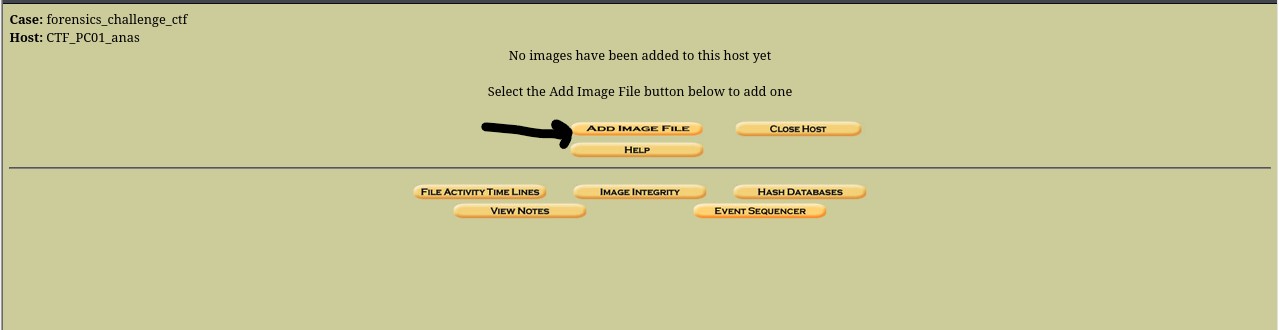
the path exemple : in linux /home/kali/Desktop/disk.img in windows D:\forensics\disk.dd if you have (Split Image ) like disk.E01 disk.E02 disk.E03 you need to type disk.* exemple /home/kali/disk.*
Type
Choose the image type:
🟢 Disk
Full physical disk with partitions.
Example:
dd if=/dev/sda of=disk.img
🟢 Partition
Single partition only.
Example:
dd if=/dev/sda1 of=part.img
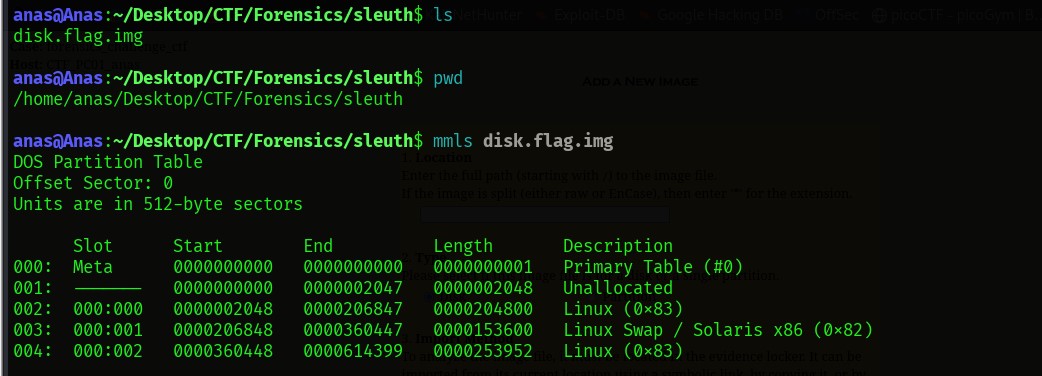
📌 How to know?
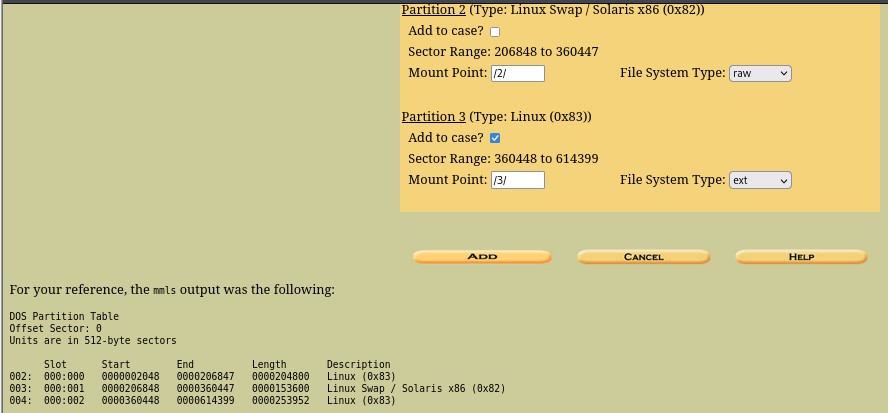
Run:
mmls disk.img
If partitions exist → Disk If not → Partition
📌 3️⃣ Import Method
How Autopsy imports the image.
🟢 Symlink
Creates a shortcut. ✔ Fast ✔ No extra space ❌ Original file must stay
🟢 Copy
Copies the file. ✔ Safe ✔ Preserves original ❌ Uses disk space
🟢 Move
Moves the file. ❌ Risky ❌ May corrupt image Not recommended.
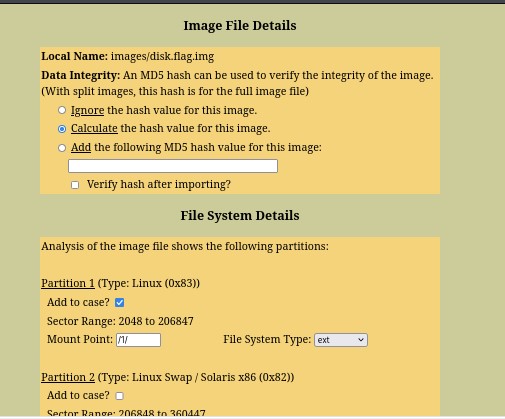
Data Integrity (MD5 hash)
Autopsy allows you to:
Ignore the hash → Skip verification (not recommended)
Calculate hash ✅ → Recommended for training or legal cases
Add existing MD5 hash → If known from prior source
Verify hash after importing? ✔ Ensures image did not change during import.
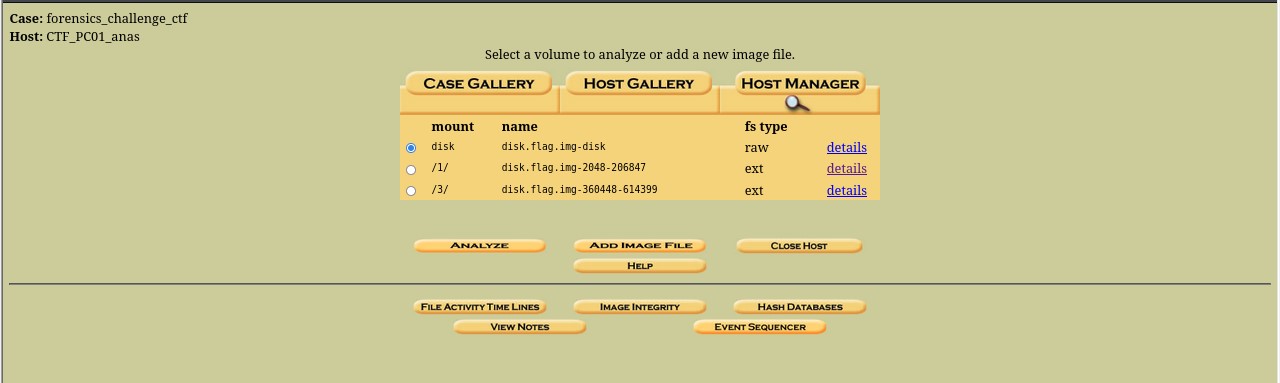
| Tab | Purpose |
|---|---|
| File Analysis | Browse files in the volume |
| Keyword Search | Search keywords (flag, password…) |
| File Type | Show files by type |
| Image Details | Image / volume info |
| Meta Data | Show metadata per file |
| Data Units | Show sectors / clusters |
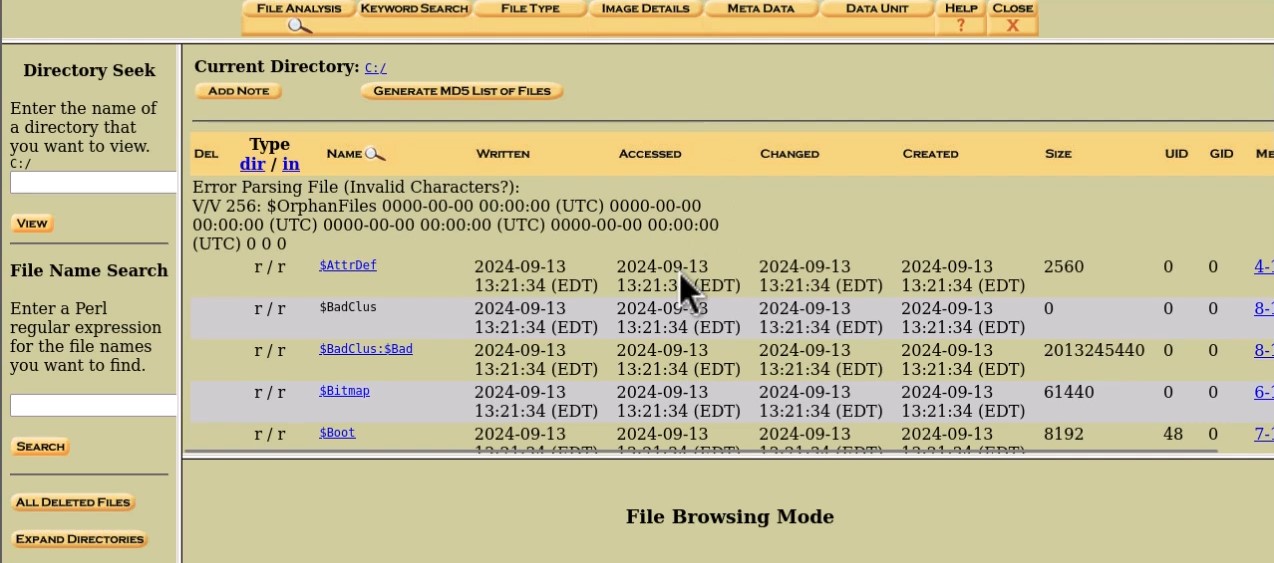
 exemple outputs of analyzing disk C windows machine
when you click on file analyze you have this results as u can see
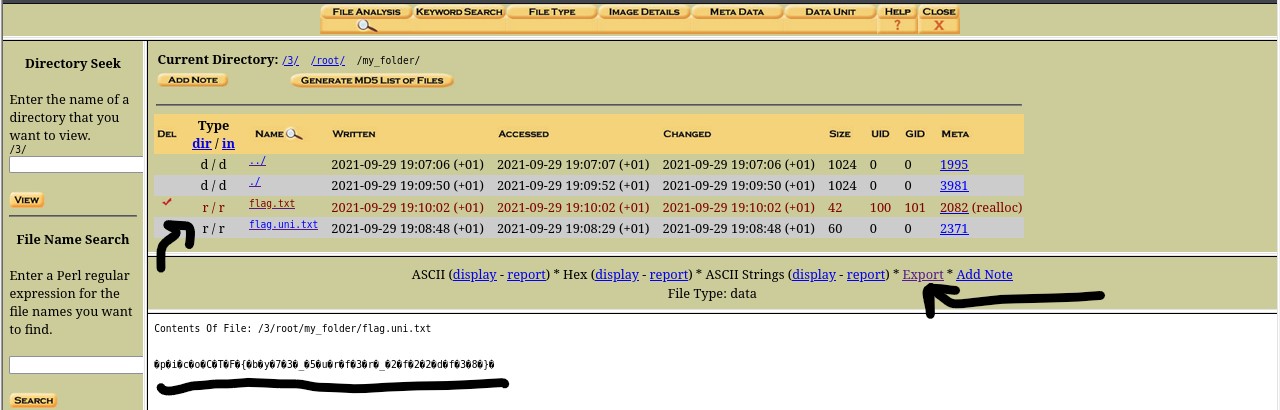
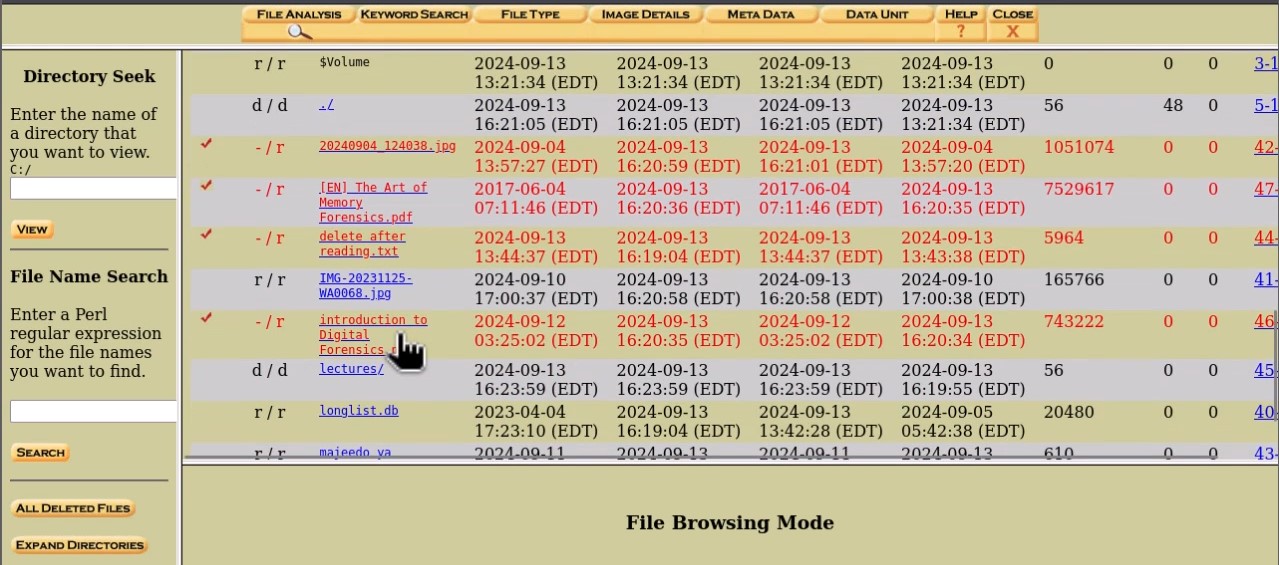
the deleted files are en red you can see all contents and you can export extract the content
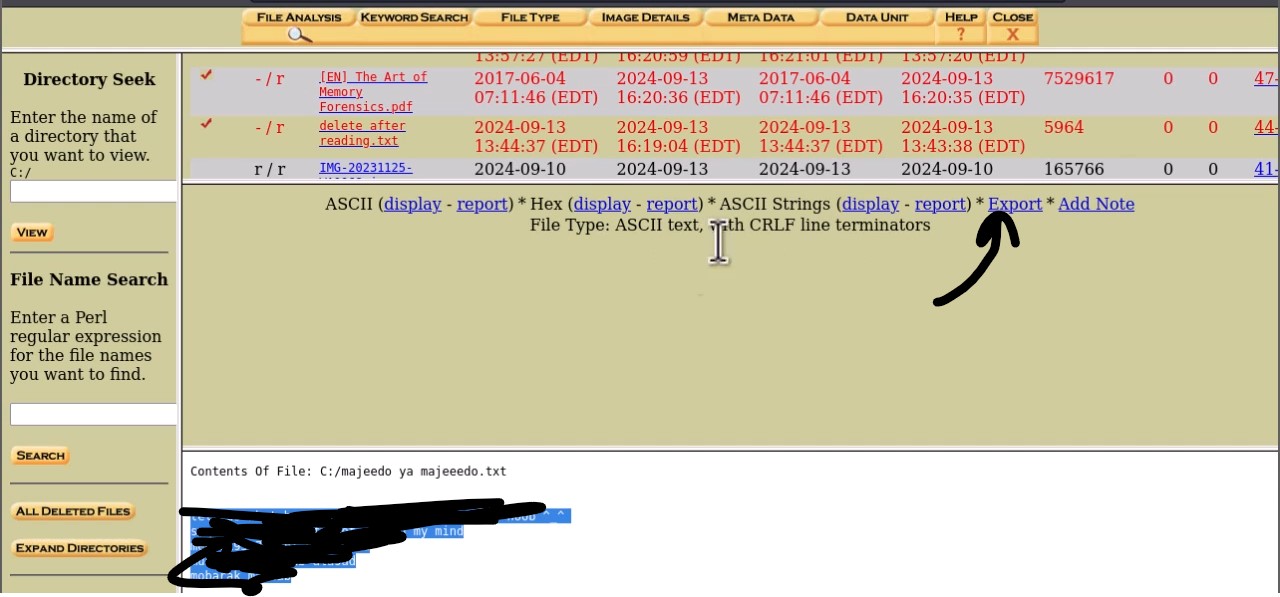
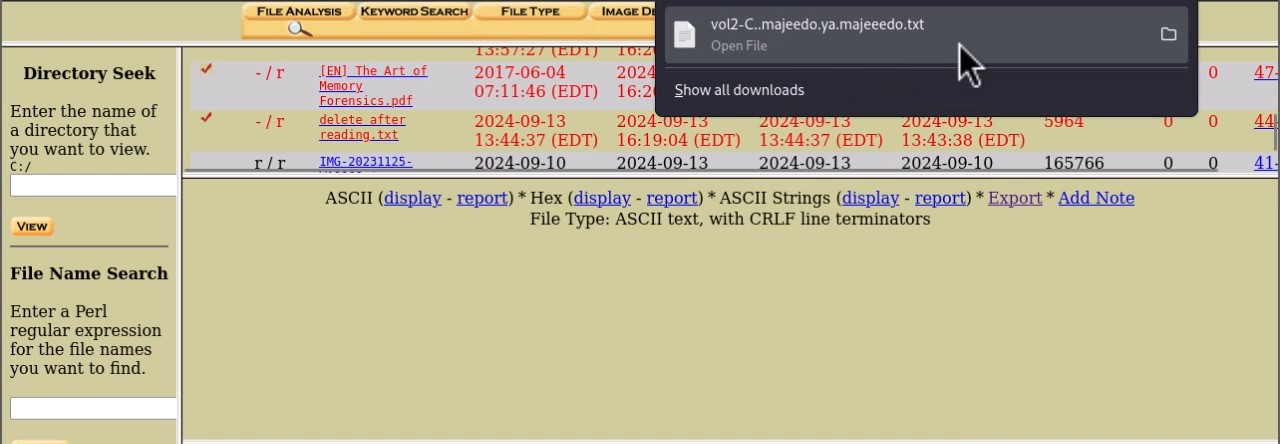
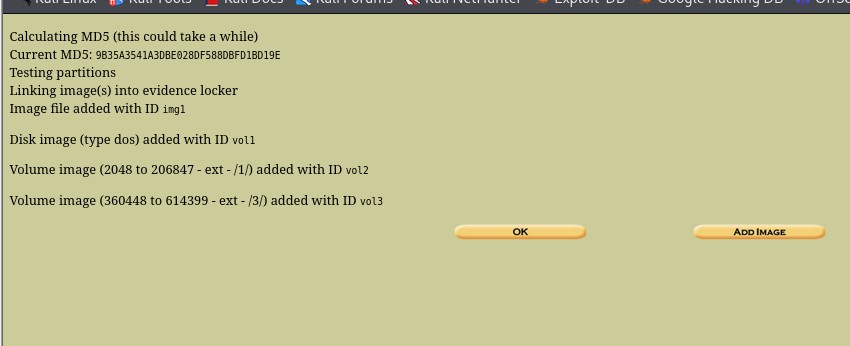
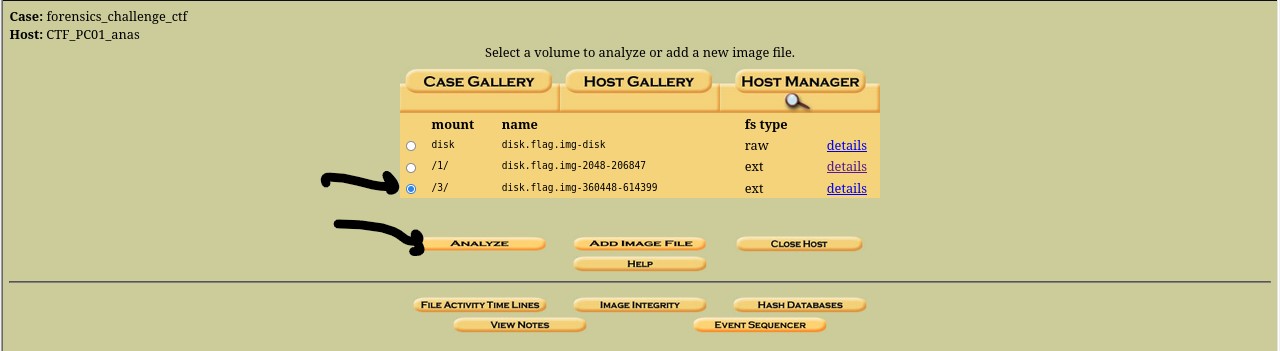
in our case we continue analyzing our linux partition part3
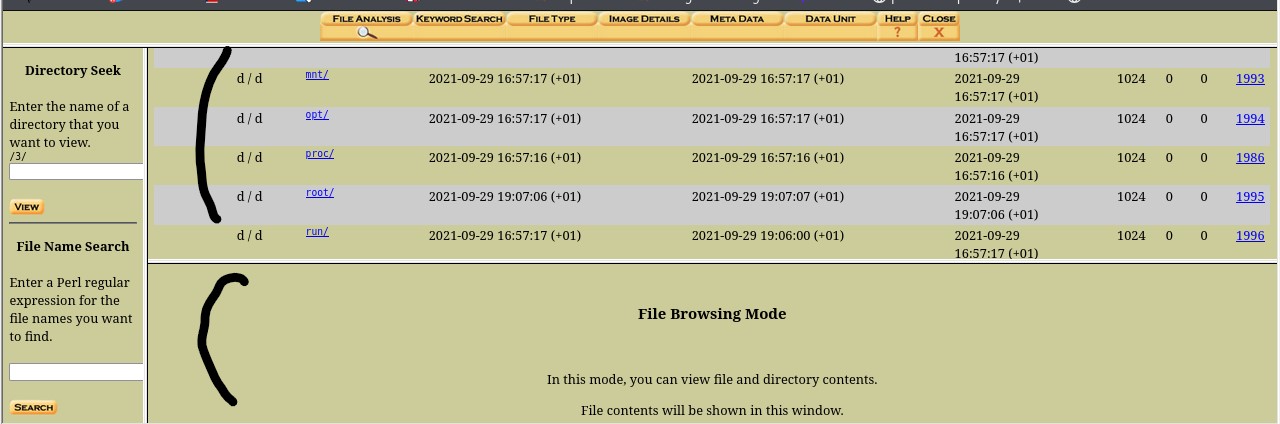
extract the flag.txt